Git For Beginners : Basics and Essential Commands
Master the fundamentals of version control and learn the essential Git commands every developer needs to manage code and collaborate effectively.
What is Git?
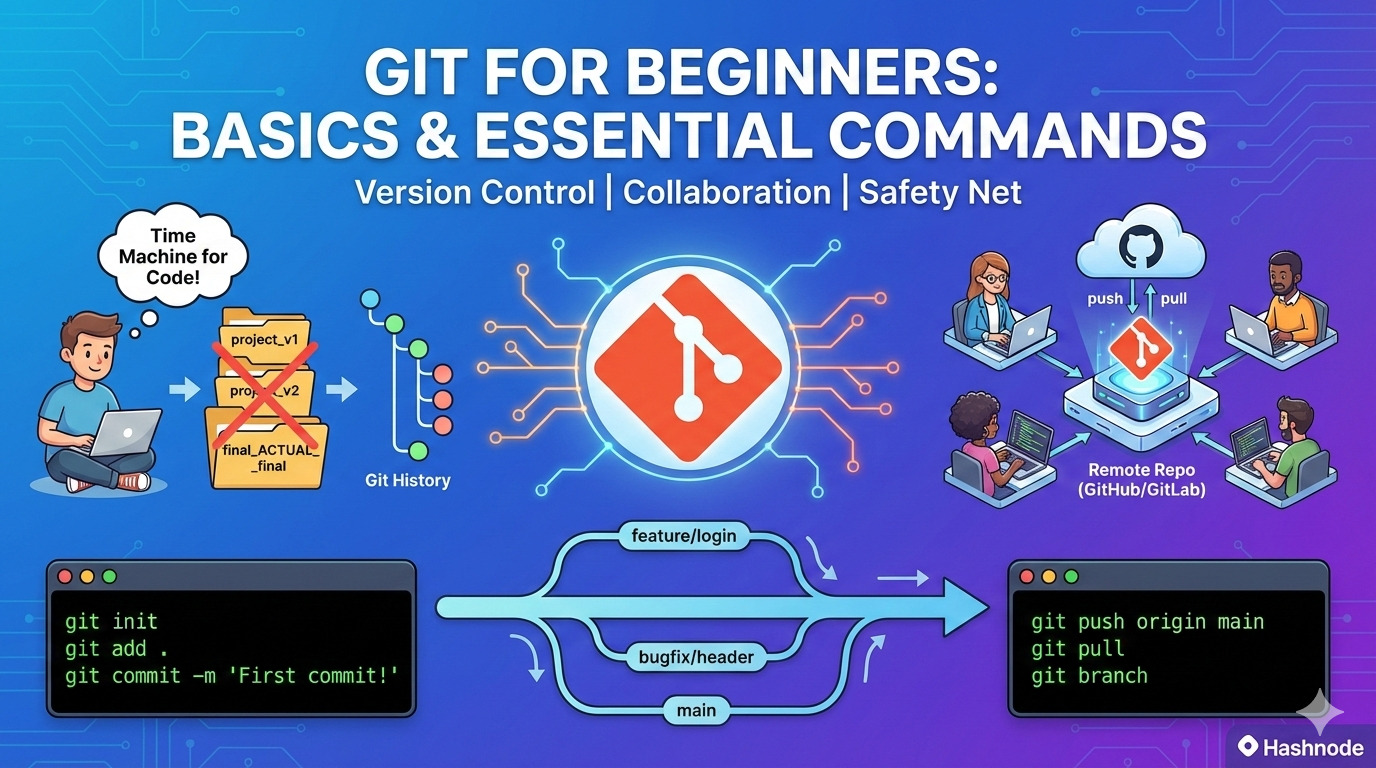
Git is Version control system (VCS) that helps you keep track of your code changes. Think of it like a time machine for your project - it compares your previous code with the new changes you’ve made, so you always know what’s different.
Git is incredibly useful when you’re working with a team. It lets multiple developers collaborate on the same project simultaneously without stepping on each other’s toes. Everyone can write at the same time and Git manages it all smoothly.
The real lifesaver? If something goes wrong in your code, you can easily rollback to a previous version. This means your project can keep running in production without any panic moments. It’s like a having a safety net for your code!
Why Git is Used?
Git is a Version Control System or VCS for short. Now, if you break down this terminology, you can probably guess what it does - it's something that tracks different versions of your software, right? And yes, you got it! That's exactly what Git does.
Imagine you are working on a project and you make changes every day. Without Git, you'd probably end up with folders named like "project_final", "project_final_v2", "project_final_ACTUAL_final" - sounds familiar? Git solves this mess by keeping a clean, organized history of every change you've ever made to your code.
But Git's power does not stop at just tracking changes. Here's where it gets really interesting - Git allows you to create separate branches for different features or problems. Think of branches as parallel universes for your code. Let's say you are building a website and need to add a login feature while also fixing a bug in the homepage. Instead of doing everything in one place and risking breaking something, you can create two separate branches - one for the login feature and one for the bug fix.
Each developer on your team can work on their own branch independently, without worrying about messing up someone else's work. It's like having your own sandbox to play in. Once you're done and everything works perfectly, you can merge your changes back into the main project. This way, multiple people can work on the same project simultaneously without chaos.
This branching system is what makes Git so powerful for teams, whether you're working with two people or two hundred.
Git Basics and Core Terminologies
Let’s get comfortable with some important Git terms :
Repository (Repo) : -
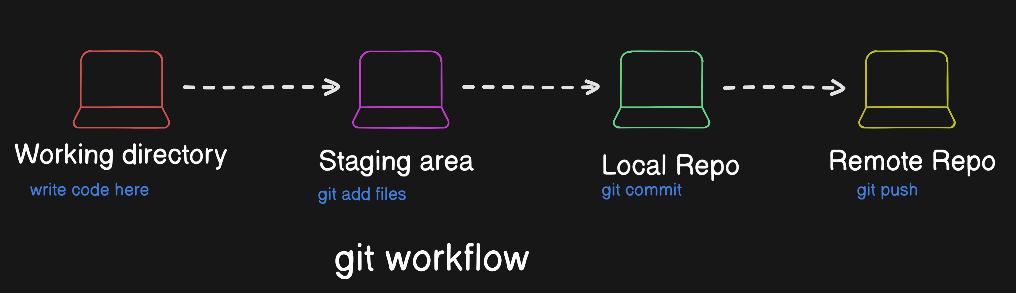
A repository or repo is essentially a special folder that Git tracks. Think of it as your project’s home where all your code, files and the entire history of changes live together.
There are two types of repositories:
Local Repo : A copy of your project on your own computer. This is where you actually write code, make changes and test things out.
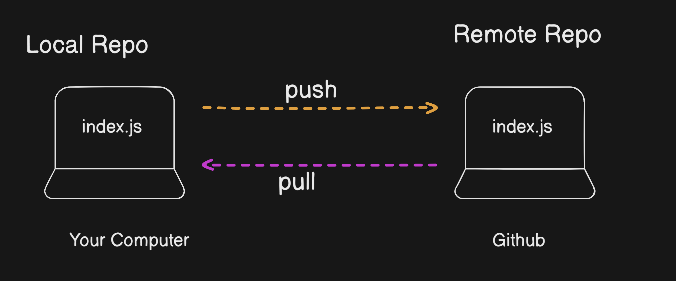
Remote Repo : The main version of your project that’s stored online on platforms like GitHub, GitLab or Gitbucket. This is where your team collaborates and shares code.
Commit:-
A commit is like taking a snapshot of your code at a specific moment in time. Think of it as a checkpoint in a video game - if something goes wrong later, you can always go back to this point.
Each commit comes with two things: a unique ID (a long string of numbers and letters) and a message that describes what you changed. For eg: “Added login button”. These commits create a timeline of your project, making it easy to review history and track your project evolved.
HEAD :-
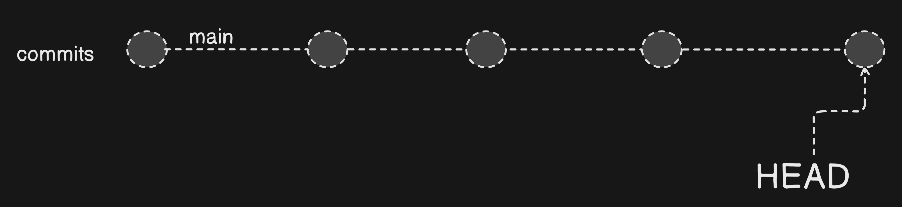
HEAD is a pointer that shows you where you currently are in your Git project. It points to the active branch you are working on right now.
Think of it like a "You are here" marker on a map. Wherever HEAD is pointing, that's your current working location in the project's timeline.
Branch :-
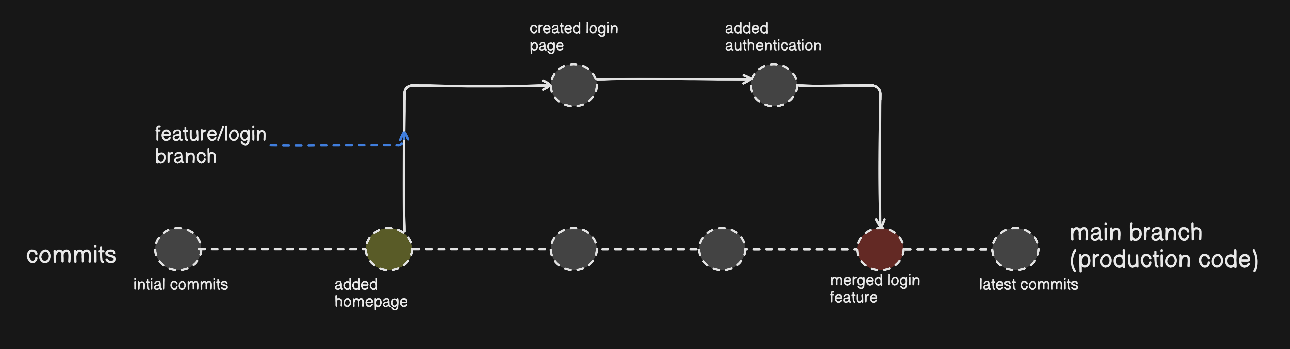
Branches are like parallel versions of your project. Imagine a tree - the main trunk (called the "main" or "master" branch) holds your stable, working code. From this trunk, you can create branches that shoot off to the side.
Why do this? Let's say you want to add a new feature or fix a bug. Instead of messing with the main code directly, you create a separate branch. You develop your feature there safely, test it thoroughly, and once everything works perfectly, you merge it back into the main branch. This way, the main code always stays clean and functional.
Staging Area :-
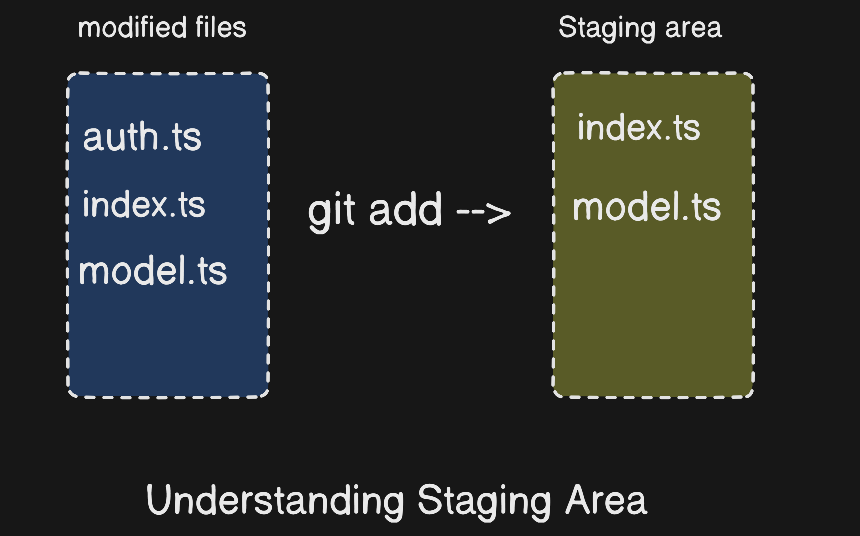
The staging area is like a waiting room for your code changes. When you modify files in your project, they don't automatically get saved to Git's history. First, you add them to the staging area using git add. This lets you review and organize what changes you want to include in your next commit.
Think of it as packing a suitcase - you decide what goes in before you zip it up and ship it off.
Working Directory : -
Your working directory is simply the actual folder on your computer where your project files live and where you do your coding. It's the place where you open files, write code, and make changes. This is different from the repository because it's just the current state of your files, not the history.
Remote :-
A remote is the online version of your repository, usually hosted on platforms like GitHub, GitLab, or Bitbucket. When you "push" your code, you're sending it to this remote location. When you "pull" you are downloading the latest changes from the remote to your local machine.
The remote is what makes collaboration possible - everyone on your team can push their changes to the same remote repository and stay in sync.
Common Git Commands
Let’s go through with some basic Git Commands you will use in your daily workflow. These are the bread and butter of working with Git !
📌 Git init
git init
This is where it all begins! The git init command initializes a new Git repository in your current folder. It's like telling Git, "Hey, start tracking this project!" Once you run this, Git creates a hidden .git folder that stores all the version history and configuration. You only need to run this once when you're starting a new project.
📌 Git status
git status
This command shows you the current state of your working directory. It tells you which files have been modified, which ones are staged for commit, and which ones Git isn't tracking yet. Think of it as asking Git, "What's going on right now?" You'll probably use this command more than any other - it's your best friend for staying aware of what's happening in your project.
📌 Git add <filename>
git add index.js
The git add command moves your changes to the staging area. When you modify a file, Git notices it, but doesn't automatically include it in your next commit. You need to explicitly add it first. You can add a specific file like git add index.js or add all changed files at once with git add . (the dot means "everything").
📌 Git commit -m “message”
git commit -m "added index.js file "
This is where you actually save your snapshot! The git commit command takes everything in the staging area and creates a permanent checkpoint in your project's history. The -m flag lets you add a message describing what you changed. Always write clear, meaningful commit messages - your future self (and your teammates) will thank you!
📌 Git Branch <branch_name>
git branch feature/notification
This command creates a new branch with the name you specify. It's like creating a new timeline where you can experiment without affecting the main code. Note: This just creates the branch but doesn't switch to it. To switch to the new branch, you'd use git checkout feature/notification or git switch feature/notification.
📌 Git push origin <branch_name>
git push origin main
The git push command uploads your local commits to the remote repository (like GitHub). "origin" is the default name for your remote repository, and you specify which branch you want to push. This is how you share your work with your team or back it up online.
📌 Git pull origin <branch_name>
git pull origin main
This command downloads the latest changes from the remote repository and merges them into your local branch. It's like saying, "Give me the newest version of the code." You'll use this when your teammates have pushed changes and you want to get their updates on your machine.
📌 git log
git log
The git log command shows you the history of commits in your project. You'll see who made each commit, when they made it, and what message they wrote. It's like flipping through a diary of your project's evolution. Press q to exit the log view when you're done reading.


