Inside Git: How It Works and the Role of the .git Folder
A deep dive into Git's content-addressable storage, hashing, and what actually happens inside the .git directory.
How Git Works Internally
Let’s start with a simple question : what actually happens when you save your code in Git ?
Most people think Git stores the changes you make to files - like "I added 5 lines to index.js" or "I deleted a function from app.js". But here's the interesting part: Git doesn't think in terms of changes. It thinks in terms of snapshots.
Imagine you are taking photographs of your project. Every time you make a commit, Git takes a complete picture of what all your files look like at that exact moment. It's like pressing pause and capturing the entire state of your project. That's your snapshot.
Now, you might be thinking - "Wait, if Git saves the entire project every time, won't that take up tons of space?" Smart question! Git is clever about this. If a file hasn't changed between commits, Git doesn't store it again. Instead, it just creates a reference pointing back to the previous version. Think of it like saying "Hey, index.js is still the same as last time, so just look at the old copy."
Here's another cool thing: Git is basically a content-addressable storage system. Okay, that sounds fancy, but it just means Git stores everything based on its content. When you save a file, Git looks at what's inside it, creates a unique fingerprint (called a hash), and stores it using that fingerprint as the name. If you save the exact same content later, Git recognizes the fingerprint and says "I already have this!" - so it doesn't waste space storing duplicates.
This snapshot approach is what makes Git so powerful. It's why you can jump back to any point in your project's history instantly. That’s why branching is so fast and easy. And that’s why Git is nearly impossible to corrupt - every single piece of data is checksummed and verified.
So when you run commands like git add or git commit, you're not just saving files. You're creating a timestamped snapshot of your entire project, storing it efficiently and building a timeline you can travel through whenever you need.
Pretty cool, right? Now let's dive deeper into where all of this actually happens - inside that mysterious .git folder.
Understanding the .git Folder
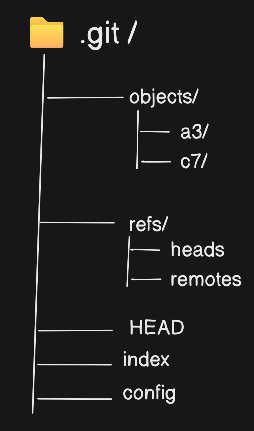
Alright, Let’s talk about the .git folder - the place where all the Git magic actually happens.
When you run git init in your project, Git creates a hidden folder called .git. You might not see it in your file explorer unless you've enabled "show hidden files" - but trust me, it's there, quietly doing all the heavy lifting.
Think of the .git folder as Git's personal workspace. While you are busy writing code in your Project files, Git is working behind the scenes in this folder, keeping track of everything. All your commits, all your branches, all your history - it all lives here. If you delete the .git folder, Your entire Git history disappears. Your files stay, but Git forgets everything about them.
Let's take a tour of what's inside this folder. Don't worry, you don't need to memorize this - just understand what each part does:
The Key Components
🗃️Objects/ - The Storage Room
This is where Git stores all your actual data. Remember those snapshots we talked about, They all live here. Every file you have ever committed, every version of every file, every commit you have ever made - it's all compressed and stored in this folder.
Git does not store them with normal filenames like "index.js" or "style.css". Instead, it uses those unique hash fingerprints we mentioned earlier. So you will see weird folder names like 3a/ and b2/, containing files with names like f5c9e8a1b3d4.... This looks cryptic, but it's just Git's way of organizing things efficiently.
🫙Refs/ - The Bookmarks
This folder contains pointers to commits - basically bookmarks in your project's history. Inside refs/, you'll find:
heads/- This is where your local branches live. Each file in here represents a branch (likemain,feature/login, etc.). The file just contains the hash of the commit that branch is pointing to.remotes/- References to branches on remote repositories (like GitHub)tags/- If you have created any tags (version makers like v1.0, v2.0)
📌HEAD/ - The Marker
The HEAD file is super important. It's a simple file that tells Git "this is where you currently are." Usually, it points to a branch (like ref: refs/heads/main), which means you're on the main branch. When you switch branches, Git just updates this file. That's it!
🗒️Other Files
description- Used by some Git hosting servicesinfo/ - Additional repository informationlogs/- Keeps a log of where your branches have been
Here’s the Beautiful Part
All of this complexity is hidden from you. You never have to manually edit these files or dig through the objects/ folder. Git handles everything automatically when you use simple commands like git add, git commit and git push.
But understanding what's happening in here helps you build a mental model. When you run git commit, you're not just saving files - you're creating objects in the objects/ folder, updating the HEAD file, moving branch pointers in refs/, and clearing the index.
One Important Warning: Never manually delete or modify files inside .git/ unless you really know what you're doing. This folder is Git's source of truth. Mess with it, and you could corrupt your entire repository history.
Think of the .git folder like the engine of a car. You don't need to understand every piston and valve to drive, but knowing the basics helps you appreciate what's happening when you press the gas pedal - or in our case, when you press git commit.
Now that we know where Git stores everything, let's understand what exactly it's storing. Time to meet Git's three main types of objects: blobs, trees, and commits.
Git Objects: Blob, Tree, Commit
Git stores everything using three types of objects. Think of them as building blocks. Lets’ understand each one:
Blobs - Your File Content
A blob is just the content of your file. That’s all.
When you create index.js with some code in it, Git takes that code, compresses it, and stores it as a blob. The blob doesn't know the filename or where it lives - it's just pure content.
Here's something cool: if two files have the exact same content, Git stores only one blob for both. Same content = same blob. This is how Git saves space.
Trees - Your Folder Structure
A tree is like a folder. It organizes your files.
A tree keeps tracks of :
File names
Which blob contains each file’s content
Subfolders (which is also trees)
So if your project looks like this :
masterji
|
|---- index.ts
|---- navbar.ts
|---- public
      |---- logo.png
Git creates :
One blob for each file’s content
One tree for the
images/folderOne root tree for
my-project/that points to everything
🧠 Note : Trees know the structure. Blobs know the content.
Commits - The Complete Snapshot
A commit ties everything together. It’s like taking a photo of your entire project.
Every commit contains:
A pointer to the root tree (your project at that time)
Your name and email
The date and time
Your commit message
A pointer to the previous commit (parent)
When you run git commit -m "Add masterji homepage", Git creates a commit object that captures the entire state of your project at that moment.
The parent pointer is important - it creates a chain. Each commit points back to the one before it, forming your project's timeline.
How Git Tracks Changes
Let’s uncover what really happens when you run git add and git commit.
The Power of Hashing
Git's secret weapon is hashing. Every piece of content gets run through a formula (SHA-1) that creates a unique 40-character fingerprint.
For example, if your file contains console.log("hello"), Git creates a hash like:
a3f5c2b9e8d1f6a7c4b2e9f1d3a8c5b7e2f9a4c1
The magic:
Same content = same hash
Change one character = completely different hash
Impossible to fake or duplicate
This is how Git ensures your data stays safe and detects when file change.
What Happens During git add
You created index.ts and run git add index.ts. Here what Git does:
Reads your file content
Calculates the SHA-1 hash
Compresses the content
Stores it as blob in
.git/objects/Updates the staging area to say “index.ts is ready, content in blob a3f5c…”
Your file is now staged, waiting to be commited. The content is already safely stored in Git’s database.
What Happens During git commit
Now you run git commit -m “add index.ts file”. Git takes these steps:
Looks at what's in the staging area
Creates tree objects representing your folder structure
Creates a commit object containing:
Pointer to the root tree
Your name, email and timestamp
Your commit message
Pointer to the parent commit
Calculates a hash for this commit
Updates your branch to point to this new commit
Moves HEAD to this commit
Clear the staging area
Done ! You have now captured a snapshot of your project.
How Git Detects Changes
When you run git status , Git :
Calculates the hash of each current file
Compares to hashes in the staging area and last commit
Different hash = file changed
No tracking every edit. Just comparing fingerprints. Fast and efficient.
Why This Matters
Understanding this shows you:
Git only stores new content when files actually change
Every piece of data is checksummed for safety
Hashing makes comparisons lightning fast
Nothing is ever lost
When you git add, you create blobs. When you git commit, you create trees and commits. These objects link together through hashes, forming your complete project history.
Git isn't magic - it's just snapshots, hashes, and smart pointers working together!


